
The following is a transcript of the live, Bjorn Cyberviking Build I presented at BSides Buffalo 2025, complete with links, downloads, and console commands:
Introduction and Hacking’s PR Problem
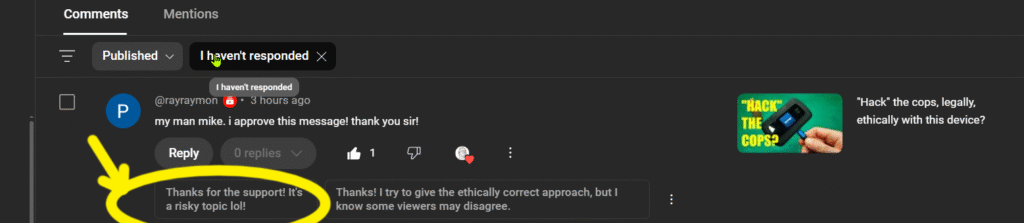
Hi, my name is Mike Kelley, also known as cyberspacemanmike on YouTube where I post videos that the algorithm deems problematic. Videos such as, “Hack the Cops Legally, Ethically With This Device?”
And here we can see that right about the time that the YouTube AI decides that this is a risky topic, it turns off recommendations and the views flatline. Even the EFF refused to promote the video!

Despite the YouTube algorithm antagonism I’ve had modest success, by way of example, this presentation’s resulting video will be sponsored by PCBWay! PCBWay is a custom fabrication site offering PCB creation, CNC machining, 3D printing, injection molding, and full product assembly. I use them when I need highly detailed resin printing as we’ll see later on, I’m very happy with their work and their sponsorship!
Solving Hacking’s PR Problem with Shiny Gadgets
The most successful video on the channel is “Pwnagotchi Tutorial, Pt. 1:Hardware.”
In that video I build the eponymous Pwnagotchi: “an A2C-based (Advantage Actor Critic) “AI” powered by bettercap that learns from its surrounding WiFi environment in order to maximize the crackable WPA key material it captures.” It’s basically a Tamogotchi, a digital pet, that hacks wifi.
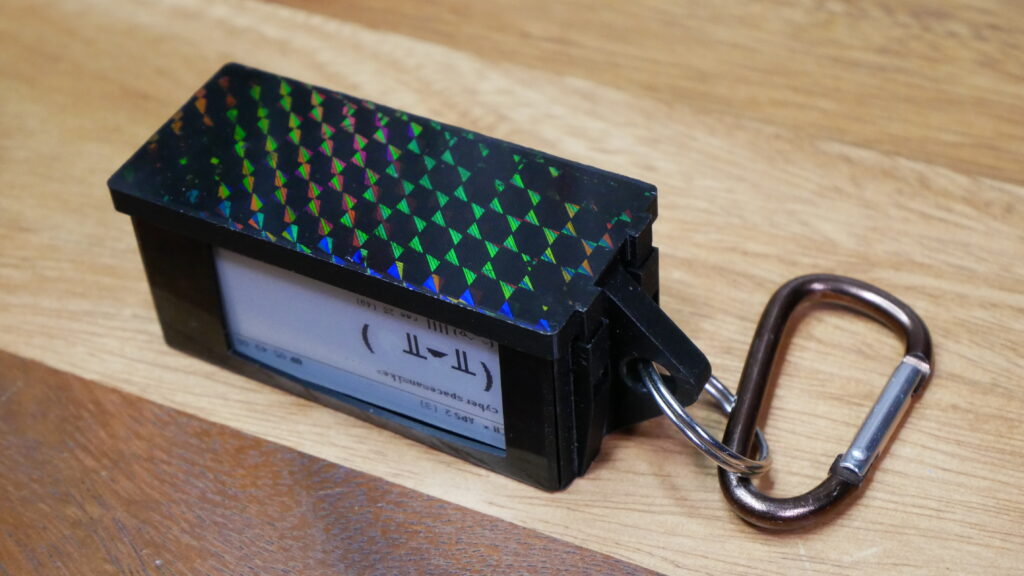
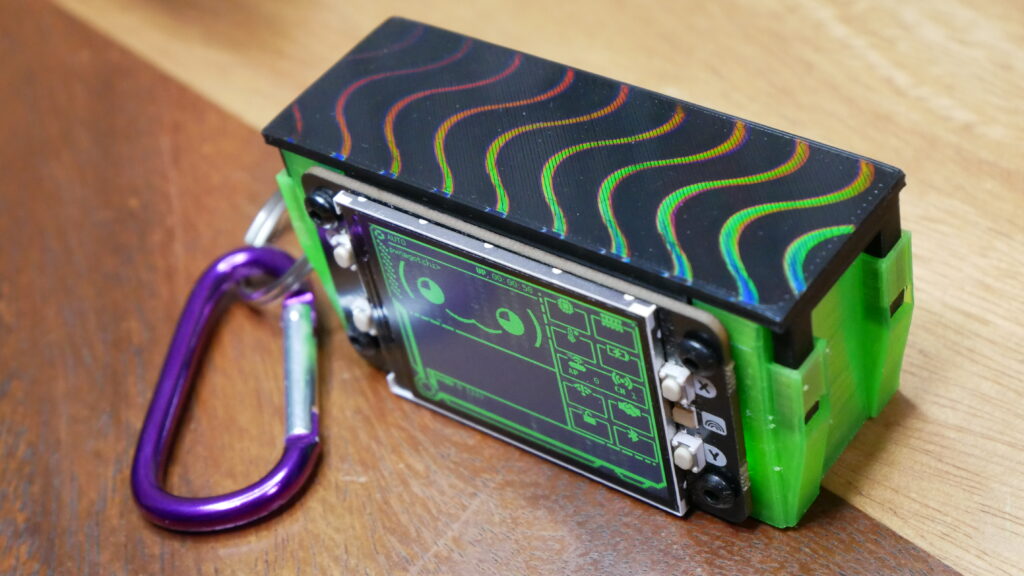
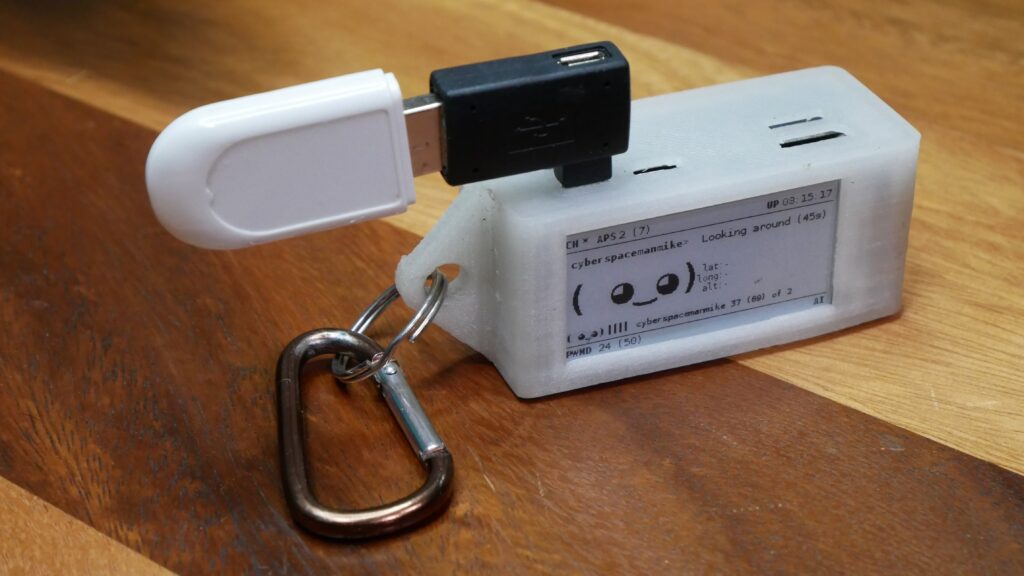
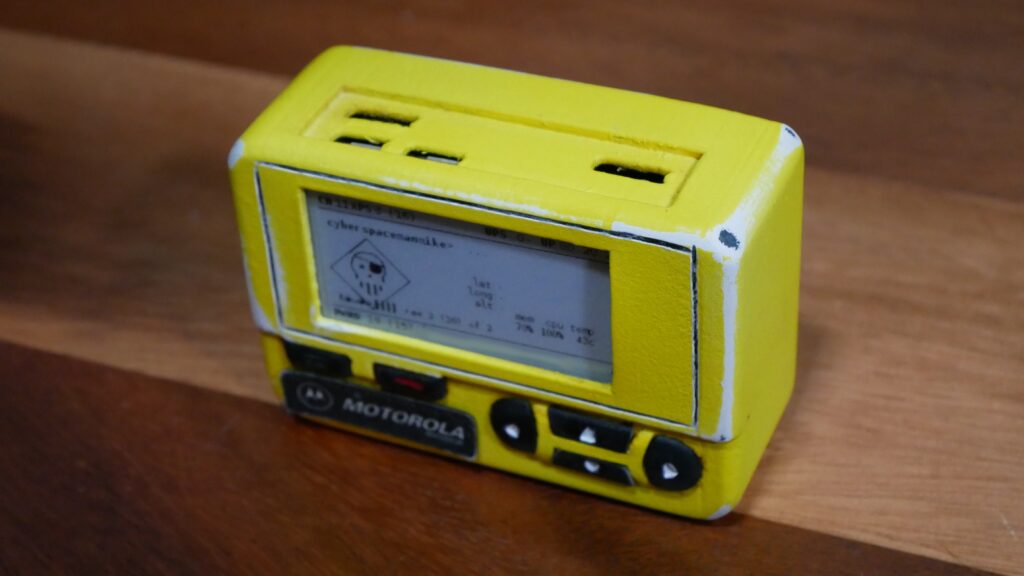
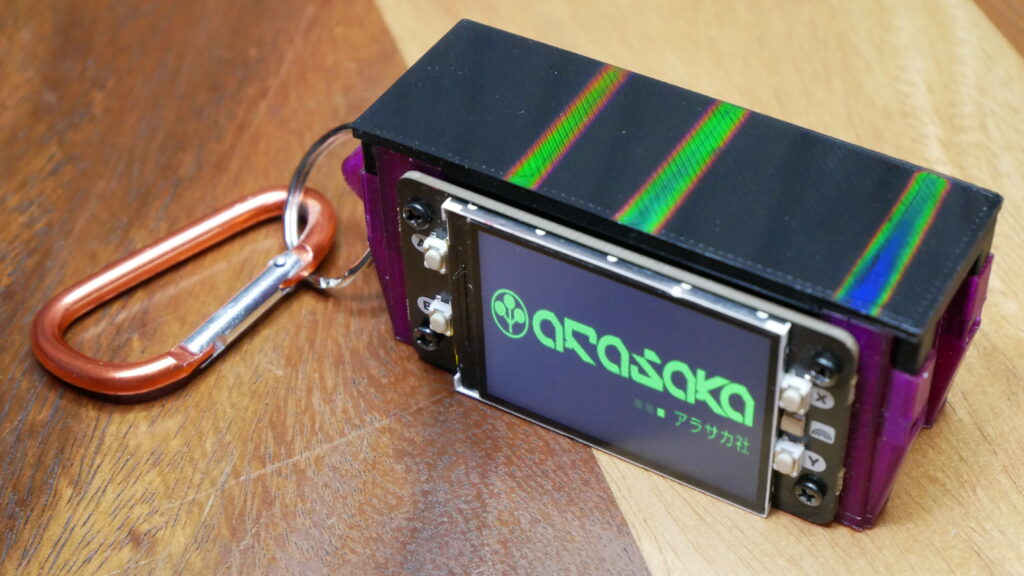
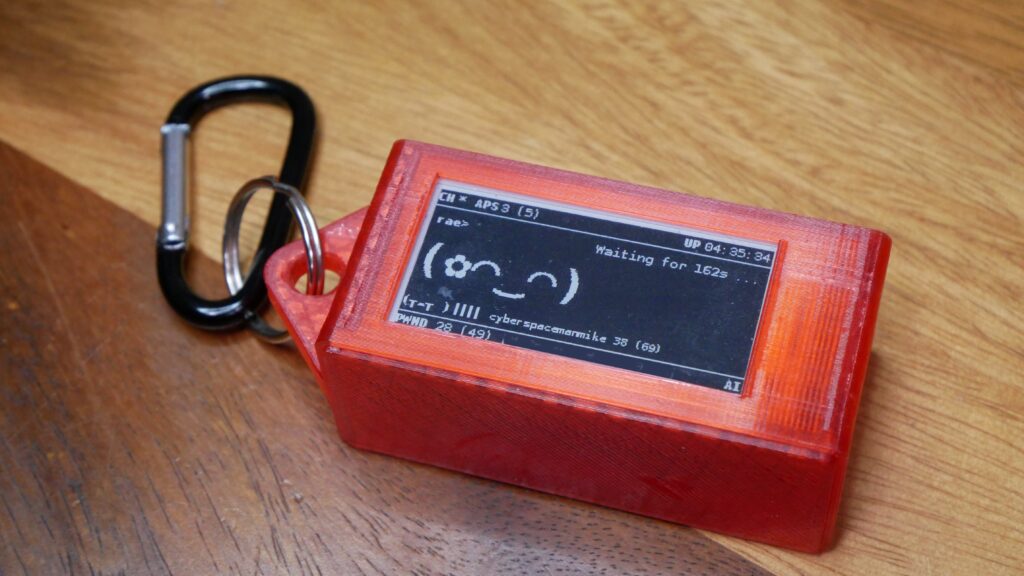
Here you can see all the pwnagotchis that I’ve created, they actually talk to each other. I’ve written a few scripts for the devices, but my contribution to the pwnagotchi project has been mainly to publicize it through tutorial videos and to engineer good-looking cases for it. As evidenced by the rather shoddy treatment by the YT algorithm, hackers and hacking in general has a PR problem and the best ways to solve it is with cool and engaging stories and shiny gadgets. So for example this case (Fig 1.1) I engineered to 3D print with five of its six sides face down to maximize transfer of the print bed’s prismatic pattern. Unlike code or console commands, it is shiny and more suitable for socials where it will likely reach a broader audience of potential recruits. And this case (Fig 1.2) is model after Cereal Killer’s Motorola pager as seen in the movie Hackers. These are basically gateway gadgets into the world of hacking.
Designing a Bjorn Cyberviking Technological Talisman
As is this device, which we’ll be making today. We’ll be making a Bjorn Cyberviking. Created by Infinition, Bjorn “is a powerful network scanning and offensive security tool for the Raspberry Pi with a 2.13-inch e-ink display… Bjorn can perform brute force attacks, file stealing, host zombification, and supports custom attack scripts.” As with the pwnagotchis, I designed a case for it! Ease of design was facilitated by the fact that the BCV uses all the same hardware as the pwnagotchi.
In the case of the Bjorn Cyberviking I wanted the aesthetics to reflect the Viking theme and envisioned the device to be a sort of cyber amulet analogue or technological talisman. I very much wanted it to look rough-around the edges as if hand-carved from wood or bone. So the RFP I wrote myself had the following bullet points:
- Viking themed
- Be a portable, technological talisman
- Folk art aesthetic
A Difficult Design
I tried to amass reference material but it was very difficult to find authentic images; most of the search results were of modern re-imaginings. This project was further complicated by the fact thart, it was going to be difficult to create a realistic representation of something that is itself, abstract. Something like the Oseberg Animal-Head Post owes its name to the fact that we don’t really know what animal it is supposed to be.
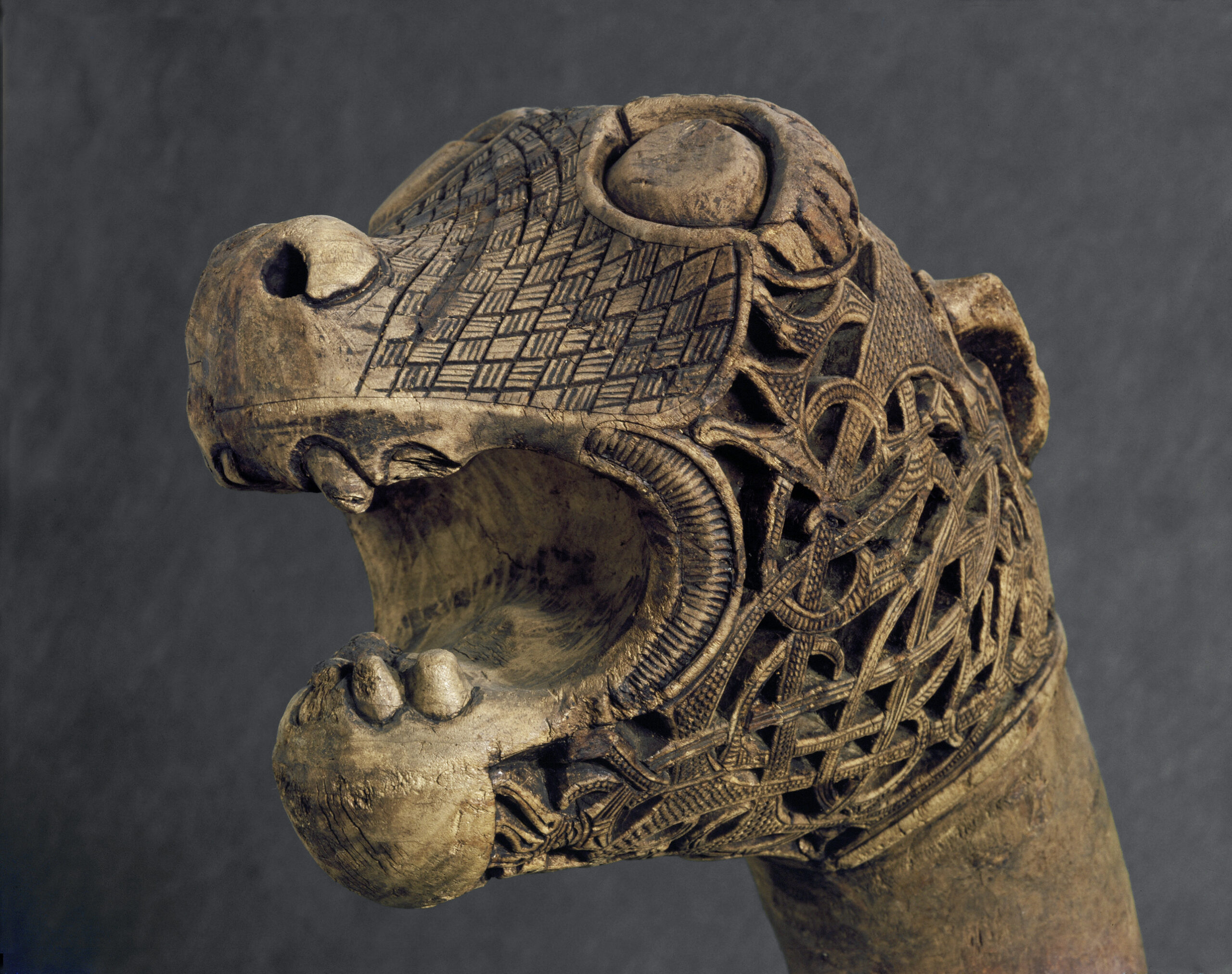
The trick was to make something that was a good representation of folk-art that was itself a bad representation of an animal, and not, despite the implications of disjunctive inference, merely a bad representation of an animal.
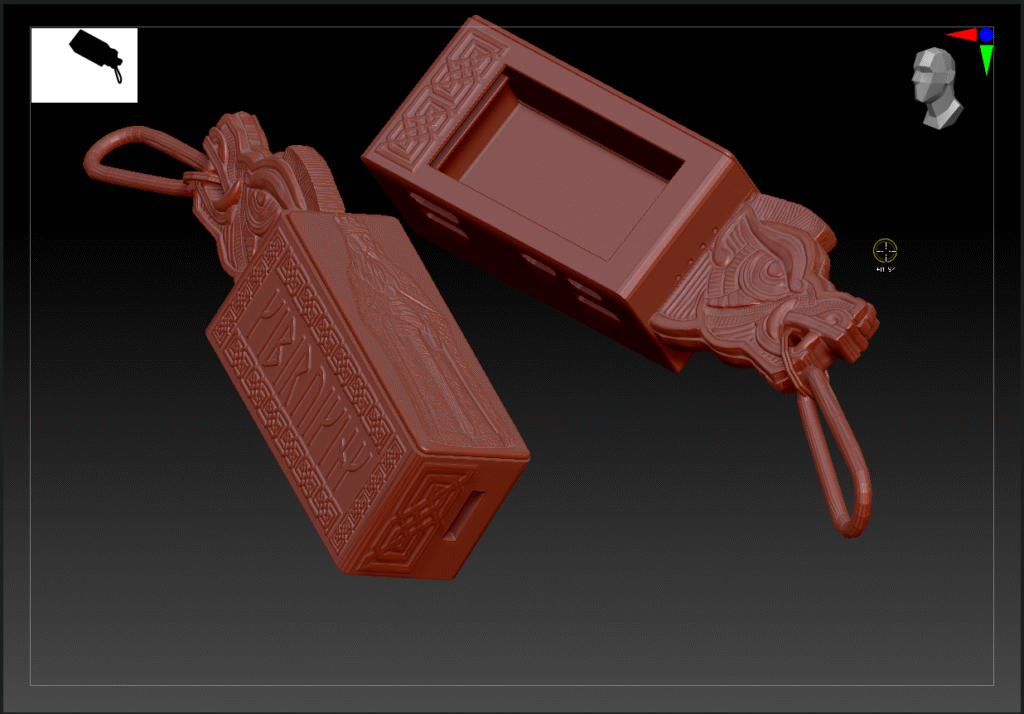
I settled on a boar’s head because I figured that, while still leaning into the folk-art aspect, the bristles and the tusks would help make it recognizable. Also, the tusks could be made to be utilitarian, a place to attach the faux carabiner seen here.
Unlike the previous cases which only required basic box modeling skills, this required digital sculpting. Being a game designer, I chose to sculpt it in zbrush. I sculpted for many days. And so I did those things and it worked! I was made happy by the results.
Making it Real
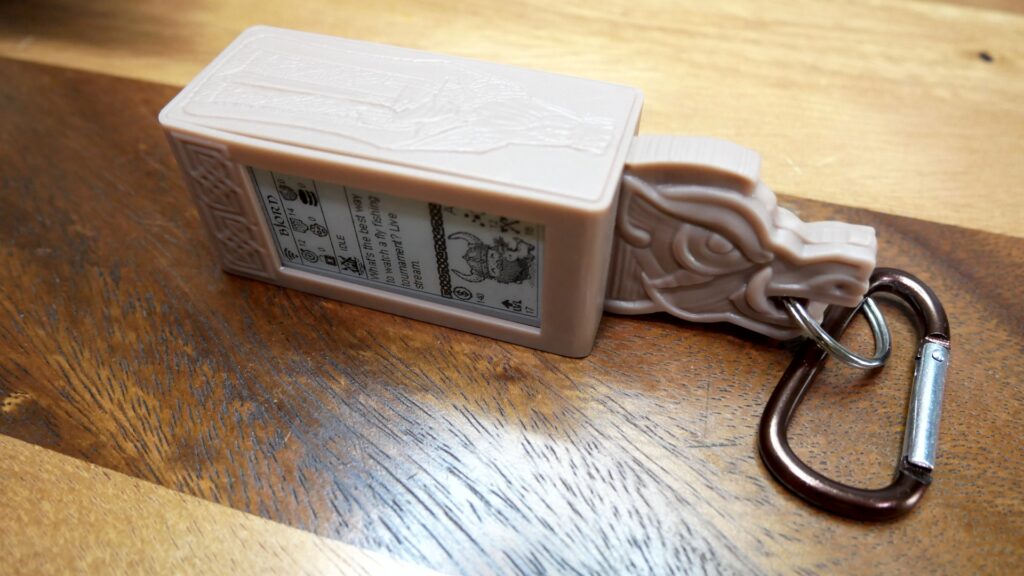
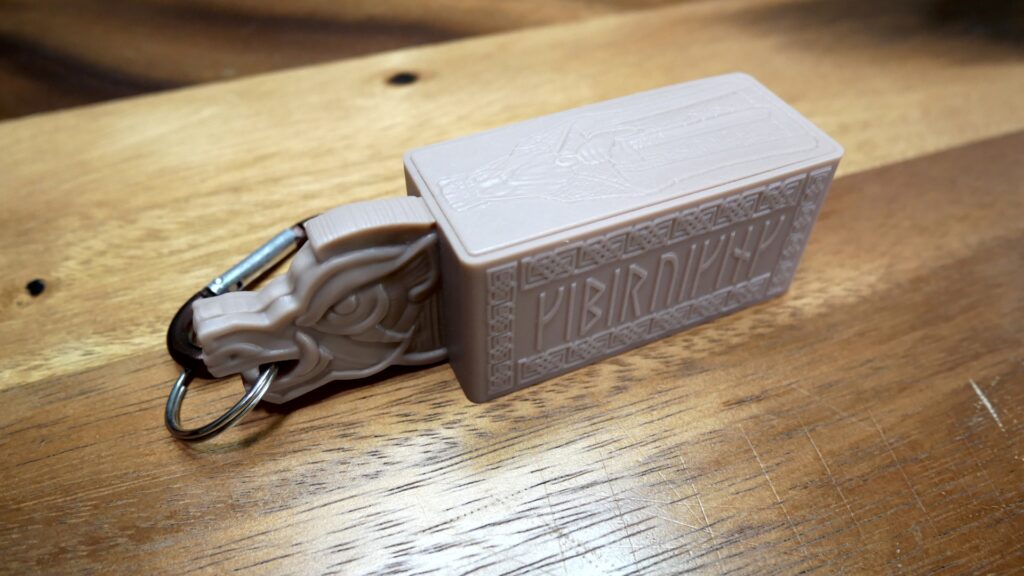
The problem now was that the detail was too fine for my 3D printer to capture. Luckily, around this time PCBWay reached out to me about sponsoring a video. In addition to sponsorship, they printed the case for me in resin. If you want to get the case, the files are available on cyberspacemanmike.com/shop for $5 and I think PCBWay will print it for like $12 or something crazy cheap like that.
Tutorial, Pt. 1:Hardware.
As mentioned, the Cyberviking uses the exact same hardware as a pwnagotchi. To build the Boar’s Head Technological Talisman (Fig 1.3), you will need the following (affiliate links):
- Raspberry Pi Zero 2 WH (with headers installed): https://amzn.to/3Y1ld0t
or
Raspberry Pi Zero 2 W (no headers): https://amzn.to/4jsTBdr
or Raspberry Pi Zero WH (with headers): https://amzn.to/4l6DHpW or Raspberry Pi Zero W (no headers): https://amzn.to/4l1R2Qf - Headers (if purchasing a Pi w/out headers): https://amzn.to/4j9Wr6P
- Waveshare e-ink display: https://amzn.to/48KHcw4
- Pisugar S Portable 1200 mAh battery: https://amzn.to/48X5T7T
- Generic Micro SD w/ 16-32GBs storage capacity: https://amzn.to/47MCkF3
- Boar’s Head Case files: https://cyberspacemanmike.com/product/bjorn-cyberviking-boars-head-case/
Assembly itself is going to be pretty anti-climatic. All that’s necessary is to solder on the header, maybe trim it a bit, and press fit everything together. And even that’s not strictly necessary as you can buy Pi Zero’s with the headers already installed. However, the headless version is a bit cheaper and during another supply chain disruption, these are likely all that will be available.
Ed note: Presumably this is where I astound everyone with my exemplary soldering skills…
God Hates Edge Cases
Ed note: The following is applicable to the circumstances of the presentation the day of. It details the technical difficulties encountered when working with a guest network or mobile hotspot. It’s interesting and informative, but most readers will likely want to skip ahead to “Tutorial, Pt. 2: Software” where the Bjorn Cyberviking installation tutorial begins.
Setting up a Bjorn Cyberviking in the field, far away from your home network, is an edge case, and GOD HATES EDGE CASES. If you attempt to perform an edge case, he will smite you.
While we can connect our Raspberry Pi to a guest network, the access point will often refuse to relay our messages to other devices on the network. This means that after we get our Pi up and running, we won’t be able to SSH in, and by extension, we’ll be unable to run the Bjorn installation script. Shockingly, the same sorts of obstacles are present in networks that we “have ownership of,” for example, mobile hotspots.
Why You Can’t Talk to Your Pi on a Mobile Hotspot
1. Phones Don’t Expose DHCP Lease Info
Unlike home routers, phones usually don’t show a connected clients list (with IP addresses) in the hotspot UI. Some Android versions might show device names or MAC addresses, but not IPs.
2. No Admin Interface Like a Router
Phones don’t have a web interface (e.g., 192.168.1.1) where you can inspect DHCP leases, routing tables, or logs — so even though the Pi gets an IP from the phone, the phone keeps it to itself.
3. Limited Network Diagnostic Tools
There’s no built-in nmap, arp, or similar on most phones unless you root or install specific apps.
4. mDNS is a No-Go
Most guest networks disable device-to-device communication and block multicast/broadcast traffic, which breaks mDNS. So, ssh pi@bjorn would fail to resolve, unless you’re on a LAN or private network that allows mDNS.
Why Are Mobile Hotspots So Limited?
1. Designed for Simplicity, Not Control
- Mobile hotspots are consumer-facing features, meant to “just work.”
- Phone makers prioritize ease of use, not technical visibility or customization.
- Exposing DHCP leases, ARP tables, or routing info would confuse the average user.
2. Security + Isolation
- Phones intentionally limit peer-to-peer device visibility to reduce risk:
- Devices connected to a phone hotspot often can’t talk to each other, only to the internet (if any).
- This avoids malware spreading between connected clients (e.g., laptops, IoT devices, etc.).
3. Resource Constraints
- Phones don’t have the CPU, storage, or thermal headroom of a router to run firewall daemons, DNS servers, web interfaces, etc.
- Minimal services = better battery life and lower support overhead.
4. Carrier Influence
- Some cellular carriers intentionally limit hotspot capabilities to:
- Reduce network load.
- Push users to buy higher-tier plans or dedicated hotspots.
- And so features like port forwarding or open NAT are often blocked.
What now?
There are (or were, at one point) some workarounds. Setting a static IP might do the trick except that the Pi foundation, in all it’s limited wisdom, has done away with the ability to edit WIFI files directly on the mSD prior to first-boot. And while configuring ethernet-over-USB might yet work, after struggling with it mightily for many hours, I wasn’t able to get it to work on modern images without access to SSH. The only workable solution, it seems, is to undo our edge case and set-up something of a home-network-on-the-go using a travel router. Unfortunately, all of mine have long since been converted to pineapple clones.
Thankfully BSides Buffalo 2025 organizer infosecgoon has agreed to lend us an access point! Let’s get to work.
Tutorial, Pt. 2: Software.
The software you’ll need:
- Raspberry Pi Imager
- 2024-10-22-raspios-bookworm
- PuTTY (recommended for SSHing)
- 7Zip (recommended for extracting .xz files)
I. Flashing the mSD Card
✅ Step 1: Insert Your microSD Card
- Insert the microSD card into your computer using the built-in card reader or USB adapter.
- Let it mount—Windows should assign it a drive letter automatically.
✅ Step 2: Extract the Image Using 7-Zip
Although Raspberry Pi Imager can now flash .xz images directly, extracting the .img first is more compatible with advanced/custom setups and helps validate the file.
To extract:
- Right-click on
2024-10-22-raspios-bookworm-armhf-lite.img.xz(or 64bit equivalent if using a Pi Zero 2W). - Hover over
7-Zip. - Click
Extract HereorExtract to 2024-10-22-raspios-bookworm-armhf-lite.img\.
⚠️ Ensure you have at least 2x the file size in free disk space—compressed files are smaller than the
.img.
Once extracted, you’ll have:
2024-10-22-raspios-bookworm-armhf-lite.img
✅ Step 3: Launch Raspberry Pi Imager
- Open Raspberry Pi Imager from the Start Menu or Desktop.
- Under the “Raspberry Pi Device” drop down, click on your corresponding device (typically “Pi Zero 2 W” or “Pi Zero”)
- Click “CHOOSE OS”.
- Scroll down and select “Use custom”.
- In the file browser:
- Navigate to and select the extracted
.imgfile (2024-10-22-raspios-bookworm-armhf-lite.imgor 64bit equivalent). - Click Open.
- Navigate to and select the extracted
✅ Step 4: Select the microSD Card
- Click “CHOOSE STORAGE”.
- Select your microSD card from the list.
⚠️ Double-check the device name and drive size. This will erase all data on the selected drive.
OS Customization
- An “OS Customization” window should pop-up.
- Under the GENERAL tab:
- Set hostname: This will be the device’s name that we will be using instead of an IP to SSH in. Don’t name it “Bjorn” or “bjorn” as we’ll be sharing the travel router’s wifi and this may serve to confuse things! Pick a unique name and ask around to make sure nobody is using the same naming conventions!
- Set username and password: I’ll be using pi and raspberry, respectively, to simplify the demo. However, I will be sure to change my username and password to hard-to-guess credentials after the demo is done! I suggest you do the same!
- Configure wireless LAN: Use the SSID and Password of the travel router; both will be provided the day of.
- Set locale settings accordingly.
- Under the SERVICES tab:
- Ensure that Enable SSH is checked
- Enable Use password authentication
- Click Save when done.
✅ These settings will be written into the OS image before flashing—no need to edit files later.
✅ Step 5: Write the Image
- Click “WRITE”.
- Confirm the warning that all data will be erased from the SD card.
- Wait while the image is written and verified.
This can take several minutes depending on image size and SD card speed.
✅ Step 6: Eject the Card and Boot
Once flashing is complete:
- Raspberry Pi Imager will show “Write Successful”.
- Click “CONTINUE”.
- Safely eject the microSD card via the system tray.
- Insert the card into your Raspberry Pi.
- Power it on.
The first boot may take a bit longer as it resizes the filesystem and initializes the system.
II. SSHing in and Installing Bjorn
✅ Step 1: Open PuTTY and Connect via mDNS
- Launch PuTTY.
- In the Host Name (or IP address) field, enter yourPreviouslyEstablishedCustomUsername@yourPreviouslyEstablishedCustomHostname
- Set Port to
22(default for SSH). - Ensure Connection type is set to
SSH. - Click Open.
✅ Step 2: Login via SSH
If this is your first time connecting, PuTTY will prompt with a security alert about the server’s key. Click Yes.
Then:
- Login as: yourPreviouslyEstablishedCustomUsername
- Password: yourPreviouslyEstablishedCustomPassword
Enter the password you set during imaging. If you didn’t set one, and SSH is enabled, the default is:raspberry
⚠️ If login fails, ensure SSH was enabled properly. You can do this by placing an empty file named
ssh(no extension) on the boot partition of the SD card before first boot.
✅ Step 3: Speeding Things Up!
The next biggest hurdle we face is overcoming the super slow slowness of the very viscous install script.
Cryptogra-speedy
Bjorn installation will often hang when trying to build wheels for cryptography. It has been my experience that it is much quicker to install it manually.
sudo apt update
sudo apt install python3-cryptography
So Much Room For Activities!
Expand the file system:
sudo raspi-config
Select Advanced Options > Expand File System and then:
sudo reboot
Swapping Spaces
Temporarily add swap space:
sudo dphys-swapfile swapoff
sudo sed -i 's/^CONF_SWAPSIZE=.*/CONF_SWAPSIZE=1024/' /etc/dphys-swapfile
sudo dphys-swapfile setup
sudo dphys-swapfile swapon
We should be super fast now!
✅Step 4: Install Bjorn Cyberviking
Bjorn Cyberviking is hosted on GitHub here: https://github.com/infinition/Bjorn?tab=readme-ov-file#-getting-started
Run the following command (you can copy and paste the whole thing, the comments are ignored; sometimes WP formats things weird so if it doesn’t work you might want to copy and paste the commands from the page from the above link):
# Download and run the installerwget https://raw.githubusercontent.com/infinition/Bjorn/refs/heads/main/install_bjorn.shsudo chmod +x install_bjorn.sh && sudo ./install_bjorn.sh
# Choose the choice 1 for automatic installation. It may take a while as a lot of packages and modules will be installed. You must reboot at the end.
Wait for one eternity.
sudo reboot
✅Step 6: We’re Done!
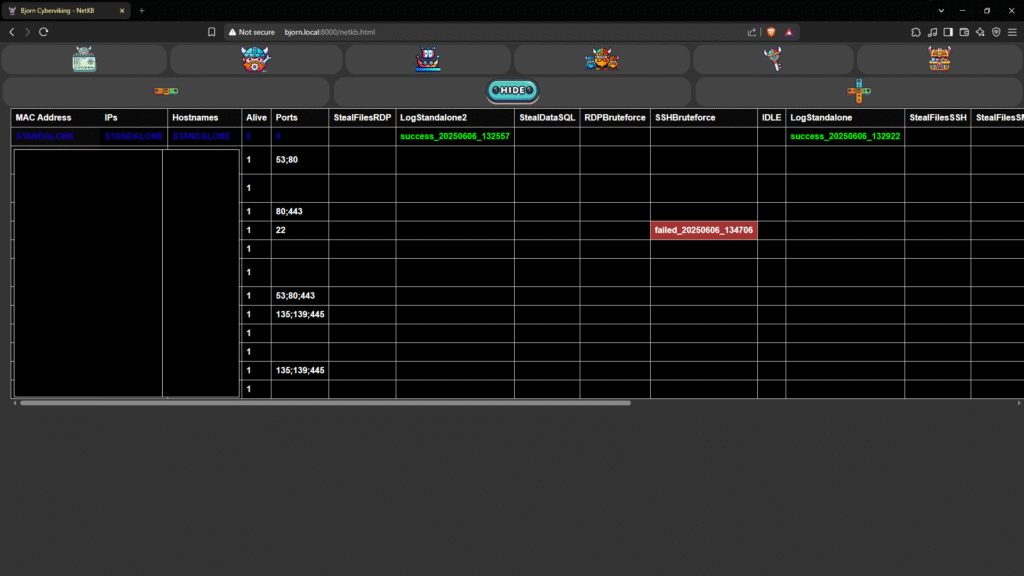
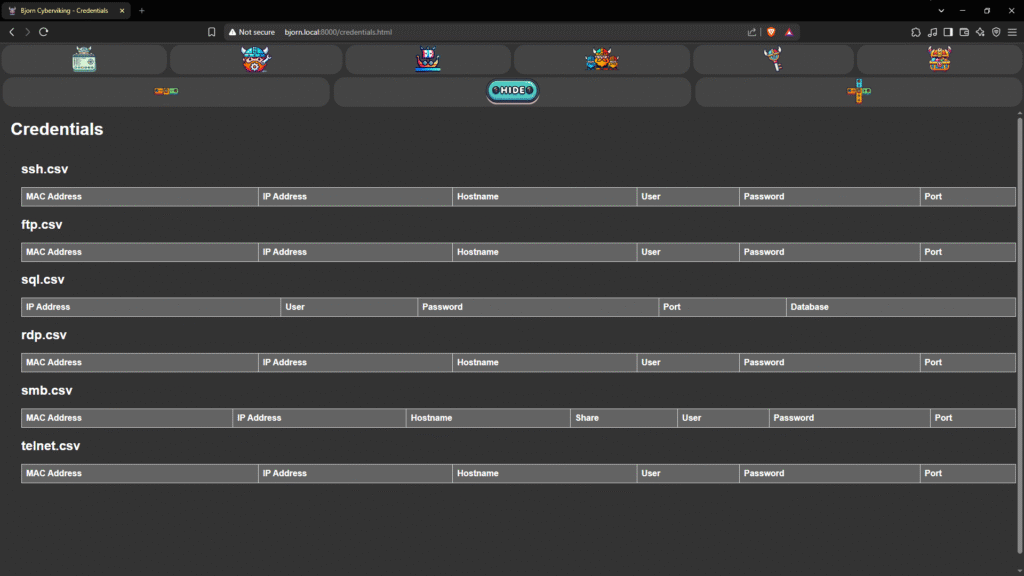
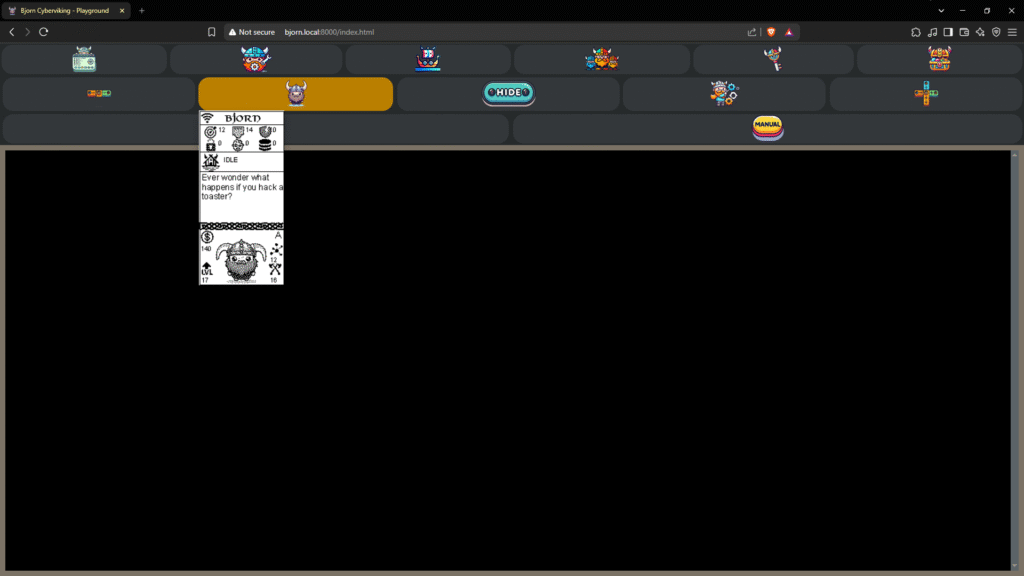
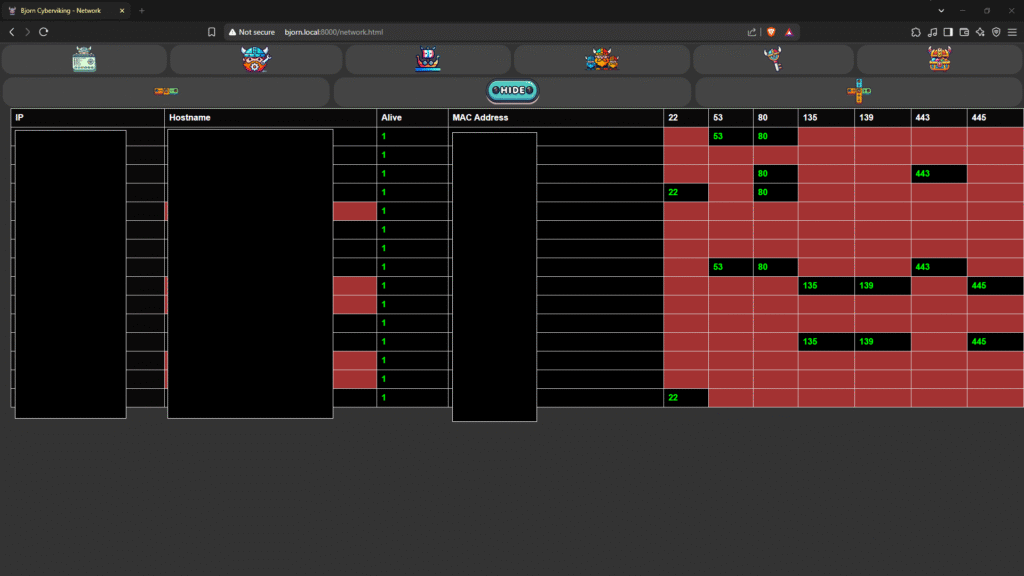
Bjorn gets to work right away, trying to ransack and pillage the very same network that moments ago, spawned it. To see what he finds, open up a browser on a computer that’s connected to the same network and go to:
yourPreviouslyEstablishedCustomHostname.local:8000
And explore! You should see something similar to the following (sans censorship):
Thanks to PCBWay for their sponsorship and to everyone at BSides Buffalo 2025!
Axel
Laurin
cyberspacemanmike