
Windows 10 has a surprisingly useful feature that lets you route individual applications to different audio devices.
You might want your browser playing through desktop speakers while a game uses HDMI audio, Discord uses a headset, and video-editing software uses a completely different output.
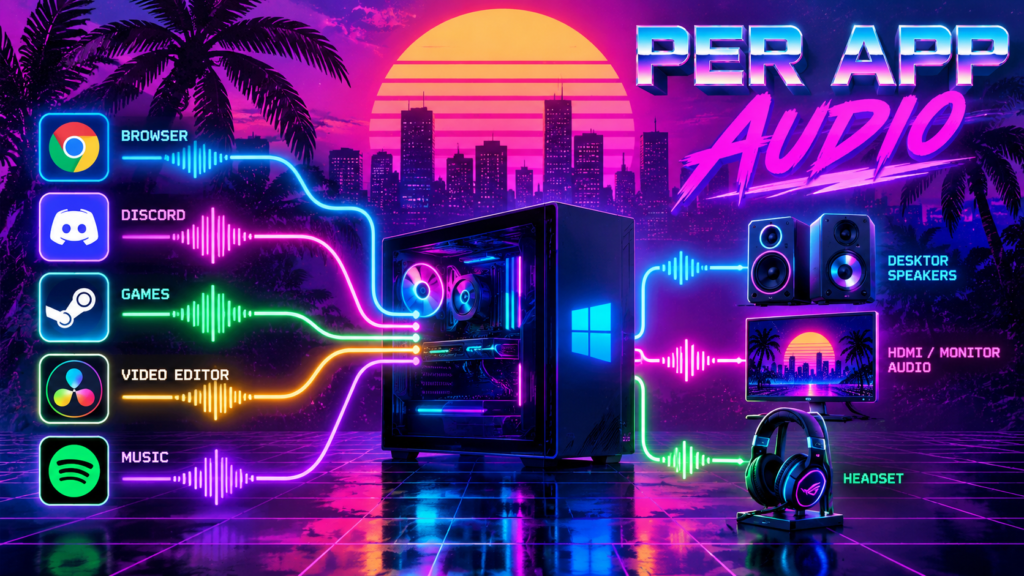
Windows is supposed to handle this through:
Settings → System → Sound → App volume and device preferences
But what happens when Windows shows the correct output device for an application while the sound is actually coming from somewhere else?
That’s exactly the problem I ran into.
After trying Windows audio resets, NirCmd, SoundVolumeView, process IDs, exclusive-mode settings, application configuration changes, and several other potential fixes, I eventually found a solution that actually survived application restarts:
👂🎺EarTrumpet.
Here’s what happened, what didn’t work, and how I fixed it.
🔊 The Problem: Windows Per-App Audio Routing Wouldn’t Stick
My Windows 10 PC has multiple audio outputs.
I wanted the Windows default output to remain on my normal speakers while routing certain applications, such as Fightcade 2, through an NVIDIA HDMI/DisplayPort audio device connected to a monitor. The reason is that, for my competitive X-men vs. Street Fighter play, bluetooth delay is as bad as lag.
Bluetooth delay also makes editing the audio of Cyberspacemanmike YouTube videos almost impossible.
Windows 10 is specifically designed to support per-app audio routing. Go to:
Settings → System → Sound → App volume and device preferences
and you can select an output device for each running application.
For example:
Windows default: Speakers
Web browser: Speakers
Game: NVIDIA High Definition Audio
Discord: Headset
Video editor: NVIDIA High Definition Audio
The problem was that Windows wasn’t actually honoring those settings consistently. An application could show:
Output: NVIDIA High Definition Audio
while its sound was clearly coming from my BT speakers. Oddly enough, manually resetting the application’s audio routing would sometimes make it start using the correct device. Then I’d restart the application and it would go right back to the wrong speakers. Windows still showed the NVIDIA device as the application’s assigned output. That turned out to be the biggest clue.
🎯 My Original Goal: Automating Audio Routing
Part of the reason I encountered this problem was that I wanted to automate my Windows audio configuration. I use TouchPortal for various controls, so I wanted buttons that could do things like:
- Change the Windows default playback device
- Route a specific application to a particular output
- Switch applications between speakers and HDMI audio
- Avoid manually opening Windows Sound Settings every time
For changing the global Windows default, NirSoft’s NirCmd worked well. For example:
nircmd.exe setdefaultsounddevice "Speakers"That’s simple and useful if you just want to change the default Windows playback device. Per-application audio routing, however, turned out to be considerably more complicated.
🛠️ Trying SoundVolumeView for Per-App Audio
NirSoft also makes SoundVolumeView, a much more powerful Windows audio-management utility. Among other things, SoundVolumeView supports:
SoundVolumeView.exe /SetDefault "DEVICE" 1for changing a default device.
More importantly, it provides:
SoundVolumeView.exe /SetAppDefault "DEVICE" 1 "APPLICATION"for setting the output device of an individual application.
SoundVolumeView can also identify audio hardware using its Command-Line Friendly ID, which is particularly useful when Windows has multiple devices with similar names or a single device with multiple personalities. An ID might look something like:
NVIDIA High Definition Audio\Device\MONITOR-NAME\RenderThis worked well for identifying the correct physical audio endpoint.
Unfortunately, reliably targeting individual applications became another story.
🔢 Why Using a Process ID Isn’t a Good Permanent Solution
SoundVolumeView can target an application using its Windows process ID, or PID. For example:
SoundVolumeView.exe /SetAppDefault "DEVICE" 1 12345This can be useful for testing, but it isn’t a good permanent automation solution. Windows assigns a process ID when an application starts. Close the application and launch it again and it will normally have a different PID.
That means a TouchPortal button or batch file containing:
12345might work right now and fail the next time the program is launched. I needed persistent per-app audio routing, not a command I had to rewrite every time Windows generated a new PID.
🧪 Troubleshooting the Wrong Audio Output
I went through quite a few potential causes.
Some were reasonable possibilities. None fixed the problem.
Restarting Windows Audio Services
Restarting the Windows Audio service didn’t solve it.
I also tried a more comprehensive reset of the Windows audio stack that I assigned a Touch Portal button called, “nukeTheAudioStack.” That worked the first few times but inexplicably failed forever thereafter.
Exclusive Audio Mode
Windows allows applications to request exclusive control of an audio endpoint. That sounded like a plausible explanation for an application stubbornly returning to one device. I tested with exclusive control disabled but the behavior remained.
Application Audio Configuration
I investigated whether the affected application itself was explicitly selecting the system’s default playback device. That didn’t explain the behavior either.
NirCmd Conflicts
Because I was also using NirCmd to change the system-wide default device, I considered whether an old script or TouchPortal action might be immediately switching things back. Testing without NirCmd produced the same behavior.
SoundVolumeView Arguments
I tried multiple ways of identifying applications and devices, including:
- Application display names
- Executable names
- Full executable paths
- Process IDs
- Device names
- Command-Line Friendly IDs
- Console audio role
- Multimedia audio role
- Communications audio role
- All audio roles
At some point, trying more command-line permutations stopped making sense. It was evident Something else was wrong.
🔍 The Clue: The Audio Briefly Switched
One particularly interesting symptom was that changing the per-app output sometimes caused a brief interruption in the audio. Then the sound resumed through the original speakers which suggested the command wasn’t simply being ignored.
Windows appeared to be doing something with the application’s audio session, but the application would ultimately end up back on the default playback device. That led me back to Windows’ own audio settings.
💡 The Breakthrough: Windows Was Showing the Right Device
I opened:
Settings → System → Sound → App volume and device preferences
and looked at the affected application. Windows already showed:
Output: NVIDIA High Definition Audio
That was exactly what I wanted but the application was actually playing through my normal speakers. Then I used the Reset function in Windows’ App Volume settings. Immediately, the application’s sound moved to the NVIDIA output. That proved several important things at once:
- The NVIDIA audio device worked.
- The application was capable of using it.
- Windows’ per-app audio routing worked.
- The desired assignment existed.
The problem was that Windows wasn’t reliably applying that stored assignment when the application’s audio session was created. Then came the decisive test; I closed the application completely and reopened it. The sound returned to my normal speakers. Windows, however, still displayed NVIDIA High Definition Audio as the application’s selected output device.
That was the real problem.
Windows Remembered the Setting but Didn’t Apply It
This distinction is easy to miss. There are effectively two different questions:
What output device does Windows say this application should use?
and:
What output device is the application actually using right now?
In my case, those answers were different. Windows remembered the correct configuration but wasn’t reliably applying it to a newly created application audio session. That also explained why repeatedly changing SoundVolumeView commands wasn’t getting me anywhere. The stored configuration wasn’t necessarily wrong. The problem was getting Windows to actually honor it when the application started.
✅ The Fix: EarTrumpet
The solution that finally worked was 👂🎺EarTrumpet.
EarTrumpet is a free Windows audio-management utility that provides much better per-application control than the standard Windows volume interface.
After installing EarTrumpet, I:
- Started the affected application.
- Made sure it was producing audio.
- Opened EarTrumpet from the Windows system tray.
- Located the application.
- Assigned it to the NVIDIA audio output.
- Closed the application completely.
- Started it again.
And that was it; simply installing EarTrumpet corrected Windows’ faulty behavior! The application reopened and continued playing through the NVIDIA output. The setting finally persisted properly across application restarts.
🎉 No More Chasing PIDs
This was particularly useful because it eliminated one of the biggest problems with my earlier automation attempts. I no longer needed to determine something like:
PID 22720and then construct a command around a temporary Windows process ID. The application could close, it could restart; its PID could change. The per-application audio routing continued working. That’s exactly what I had wanted from Windows’ built-in App Volume settings in the first place.
🔄 Global Audio Switching vs. Per-App Audio Routing
One thing I learned from this project is that it’s useful to treat global audio switching and per-application audio routing as two different jobs.
Global Default Audio Switching
If you want to switch the entire Windows system between two outputs, utilities such as NirCmd and SoundVolumeView are still extremely useful.
For example:
nircmd.exe setdefaultsounddevice "Speakers"This is ideal for:
- TouchPortal
- Macro pads
- Batch files
- Desktop shortcuts
- Stream Deck-style controllers
- Automated workstation configurations
SoundVolumeView also provides considerably more advanced command-line audio control.
Per-Application Audio Routing
If you want something more like:
Windows → Desktop Speakers
Browser → Desktop Speakers
Game → HDMI Monitor
Discord → Headset
Video Editor → HDMI Monitor
then EarTrumpet is worth trying, particularly if Windows’ built-in App Volume interface claims an application is assigned to one device while the application is actually using another.
🧭 How to Tell If You Have the Same Windows Audio Problem
Here’s the quickest test I found. Start the affected application and make sure it’s producing sound.
Then open:
Settings → System → Sound → App volume and device preferences
Check the application’s selected output. If Windows says:
NVIDIA High Definition Audio
but you’re actually hearing the application through:
Speakers
Change or reset the application’s output.
If the sound immediately moves to the correct device, close the application and launch it again.
If it returns to the wrong output while Windows still displays the correct device assignment, you’re probably dealing with the same general Windows per-app audio-routing problem I encountered.
At that point, I’d try EarTrumpet before doing anything drastic.
⚠️ What I Wouldn’t Do First
Knowing what I know now, I wouldn’t immediately:
- Reinstall audio drivers
- Reinstall the affected application
- Delete Windows audio registry keys
- Reset every audio device
- Modify unrelated application configuration files
- Disable devices in Device Manager
- Continuously restart Windows Audio services
- Build scripts around changing process IDs
Those approaches can introduce additional variables without addressing the underlying problem. First determine whether Windows already knows the desired per-app output but simply isn’t applying it correctly. If that’s what’s happening, EarTrumpet may solve the problem without any destructive troubleshooting.
🏁 Final Takeaway
The most frustrating part of this Windows 10 audio problem was that Windows Sound Settings were lying by omission. The interface showed the correct per-application output device but the application wasn’t actually using it.
Resetting the application’s audio configuration temporarily fixed the problem, but restarting the application brought it right back.
That sent troubleshooting toward audio drivers, command-line syntax, process IDs, exclusive mode, application settings, and other possibilities.
The eventual solution was much simpler: Install EarTrumpet, assign the application to the desired output through EarTrumpet, and let it handle the per-application audio session.
It solved the problem for me without driver reinstalls, registry modifications, changing application configuration files, or maintaining scripts full of temporary process IDs! I can’t say enough good things about this free app!
I spent several hours over the course of days troubleshooting per-application audio! If this guide has saved you from a similar fate, please consider subscribing to the Cyberspacemanmike YouTube channel and newsletter! Thanks!